Listings & product data
OTTO product not online: Check listing status and find errors
Your OTTO product is not online? Check its upload, activation and marketplace status, interpret error messages and identify concrete next steps.
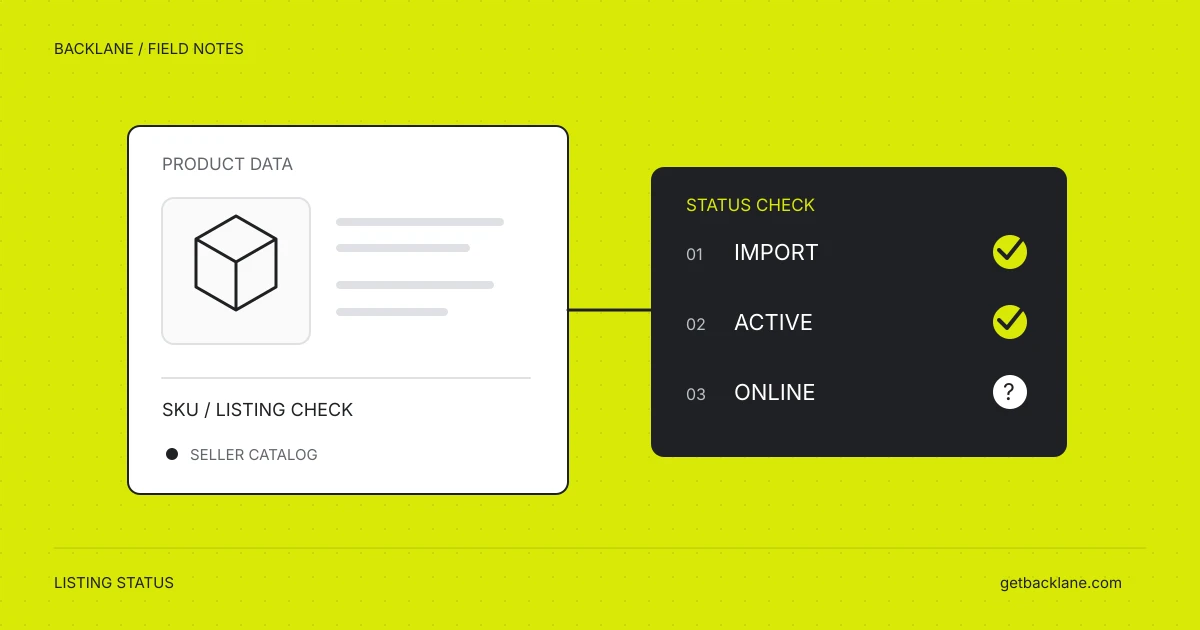
The product data has been transferred and the import reports success, but you cannot find your product on OTTO. Before sending the same data again, check exactly what was processed successfully, whether the variant is activated and which status the marketplace reports.
A successful upload does not confirm a visible listing. OTTO explains in its product documentation that further checks after data transfer can prevent a variant from going online.
This guide takes you from an affected SKU to an evidenced cause or a clear next check. With Backlane, you can query the required information through your connected seller account in an AI chat. The prompts are templates for read-only checks, not recorded results from a seller account.
Our practical guide to analysing marketplace data with AI explains how data access works and which other seller questions you can investigate.
Three pieces of information to keep separate
A product may have several variants. Check the specific SKU, such as a particular colour and size. Another variant’s status does not answer your question.
| Information | Which question does it answer? | What does it not establish? |
|---|---|---|
| Product transfer result | Was the submitted variant processed, rejected or recognised as unchanged? | That it is visible on otto.de |
| Activation status | Is the variant intended to be active? The API provides active for this. | That it has passed all other checks |
| Marketplace status | Which status, errors or information does OTTO report for this variant? | That your offer appears prominently in every search or can be ordered at any time |
Read these together. active: true and a reported error are not automatically contradictory: you intend to offer the variant, but another check may still be outstanding.
Also record whether you are inspecting a live account or a test connection. The OTTO sandbox simulates the shop validation process; a test status does not establish publication on otto.de.
Check a single SKU with AI
First connect your seller account through the Backlane OTTO integration and your AI tool to the MCP server. The setup guide explains the process. For diagnosis alone, you can disable write access across your Backlane organisation.
Replace the placeholder in this prompt with a real SKU. If you have several OTTO connections, also specify the account to use.
Check the current marketplace status and activation status
of OTTO SKU [SKU] in my specified connection.
Use read-only queries throughout.

Show SKU, MOIN, status, active, error code and original message,
additional information, any shop link and lastModified.
Separate errors from optimisation information and state the
source and retrieval time for each status value.

If a record or field is missing, identify the gap.
Do not infer a status from missing data.
Then explain what is established, what remains unresolved
and which information I should check next.
MOIN is OTTO’s identifier for the variant and its associated content. Use it alongside your own SKU to verify the match. A shop link, where available, helps you inspect the specific variant. Check the product page directly to see whether it displays your offer and the expected product data.
lastModified refers to the last change to the relevant status. It is not the same as the retrieval time, and on its own it does not establish how long a problem has existed. A timeline requires several saved observations or suitable historical data.
The library also offers a compact OTTO listing diagnosis prompt for checking a single SKU.
Interpret marketplace status correctly
The OTTO interface connected through Backlane uses the following status values. The right-hand column gives useful checks; the actual cause comes from your variant’s messages.
| Status | Meaning for diagnosis | Next check |
|---|---|---|
PENDING | Processing or validation is still outstanding. | Check the status and available messages again; for an upload in progress, inspect its process status. |
ONLINE | The variant is reported as online. | Use the shop link to verify the correct variant and your offer; if ordering is a problem, also check availability and delivery information. |
RESTRICTED | A restriction is reported. | Analyse the associated errors. Do not treat this simply as an indication of a lower search position. |
REJECTED | A rejection is reported. | Save the original error and use it to identify what needs correcting or clarifying. |
INACTIVE | The variant is reported as inactive. | Check its activation status and the intended catalogue decision. |
Keep errors separate from optimisation information. Marketplace status provides different fields for them: errors and information. The AI must not present an informational message as the reason for missing publication without further evidence.
An inactive product may have been deliberately removed from your range. Check the intention before planning activation. Likewise, REJECTED alone establishes neither the precise rejection reason nor the appropriate correction.
Move from status to the right next check
The upload is still pending or contains errors
If you have just transferred product data, include the result of that exact transfer. You need its process ID. This comes from the upload response or the system that submitted it; an AI should not guess it.
The process status done means processing has finished. Also check the results for successful, failed and unchanged variants. unchanged is not new evidence that a previously reported problem has been fixed.
If you do not have the process ID, start with the current marketplace status and your system’s transfer log. This helps avoid inspecting the result of a different import by mistake.
OTTO reports a specific error
Keep the error code and original message. Then ask which SKU and submitted field the message refers to. If the relationship is unclear, the answer should say so explicitly.
A fictional example: A variant is active but has the status RESTRICTED. Its error message points to a missing required attribute. Check the affected field in the data actually transferred. A value in your PIM is not sufficient evidence if it was left out of the export.
If the message does not clearly identify a field, the AI should not add a seemingly appropriate attribute. First formulate the unresolved question for your integration team or OTTO support.
The variant is online, but your offer appears unavailable
First verify the exact variant and seller on the product page. Then check the reported available quantity and shipping profile assignment. The OTTO availability documentation describes separate queries for inventory, shipping profiles and handling time. The shipping profile provides logistics information needed for ordering.
A quantity of zero and a missing record are different findings. When information is missing, investigate why it could not be retrieved. If the data appears complete but does not match the product page, record both observations and their timestamps instead of inventing an error.
No result is returned
Check the selected connection, exact SKU spelling and filters. List queries must include all required result pages. A missing match on the first page does not establish that the variant is unknown.
A failed request is not a listing status either. Resolve missing authentication or read permissions before drawing conclusions about product visibility.
Prioritise several affected products
Once the process works reliably for one SKU, you can extend it to a product group. However, a simple list of every product that is not ONLINE mixes ongoing checks, errors and deliberately deactivated variants.
This prompt separates the cases and highlights shared errors:
Check the marketplace status of my OTTO products in
[product group or SKU list]. Read all required result pages.

Show every variant whose status is not ONLINE, with its SKU,
status, activation status, error code and original message.
List variants whose status cannot be retrieved separately.

Group identical error codes with counts and affected SKUs.
Separate ongoing checks, reported errors and inactive variants.
Do not treat optimisation information as errors.

Suggest an order for investigating shared causes.
Explain it using the available data, without estimating lost
revenue. Do not change products or activation settings.
For example, if many SKUs have the same error message, first inspect a representative variant and their shared export process. This may point to a common mapping or missing data transfer. You still need to confirm from the data whether they actually share the same cause.
Verify a correction properly
Record the finding before making a change. After a reviewed correction, check whether the new data was processed and what the marketplace now reports. An error disappearing, a status changing and a variant becoming visible are separate observations.
You can use this prompt for the follow-up check:
Check OTTO SKU [SKU] again and compare it with the finding
previously recorded in this chat.
If you do not have that finding, ask for it; do not invent a history.

Show the previous and current marketplace status, activation
status, errors and corresponding timestamps.
If I supplied a process ID for the corrected data transfer,
also check its result for this SKU.

Identify which change is evidenced and what remains unresolved.
Provide the available shop link for my visual check.
Use read-only queries throughout.
For a support request, useful details include the specific SKU, a MOIN if available, the error code and original message, the process ID and observed timestamps. Add the expected and actual behaviour. Do not include credentials in the request.
Common questions about missing OTTO listings
How long does it take for a product to go online?
A single PENDING status cannot provide a reliable estimate of the remaining time. Check the associated process, available messages and a fresh status query. If the case remains unresolved, give the responsible team the recorded history to investigate.
Is reactivating the product enough?
Activation status alone does not resolve an evidenced product data error. First check the cause and whether the product is intended to be active at all. This diagnostic workflow therefore does not activate products automatically.
Why can the AI not identify a clear cause?
The answer depends on the data returned. An incomplete error message, missing process ID or record that cannot be retrieved can limit the diagnosis. A good analysis then identifies the missing information and the next check.