Marketplace analysis
Analyse marketplace data with AI: A practical guide for sellers
Use AI to analyse OTTO, Kaufland and Mirakl data: connect your seller accounts, compare sales and check listings with practical example prompts.
A product sells well on OTTO but barely sells on Kaufland. Is the difference down to the offer, stock levels or the product not being online there at all? The answer is often spread across several seller portals, order lists and product records.
With a connected AI tool, you can retrieve this data in chat and analyse it together. You ask the seller question; the AI uses a connection such as Backlane to access the authorised interfaces of your seller accounts. To turn the results into a useful decision, the date range, product matching and metrics must be consistent.
This guide walks through that process and provides prompts for sales comparisons, listing checks and OTTO Ads. The prompts are templates to adapt; the numerical example is fictional and does not show a customer’s results.
How does AI access your marketplace data?
Simply asking a question does not give an AI chat access to your orders or stock. It needs a connection to your seller accounts and the appropriate permissions.
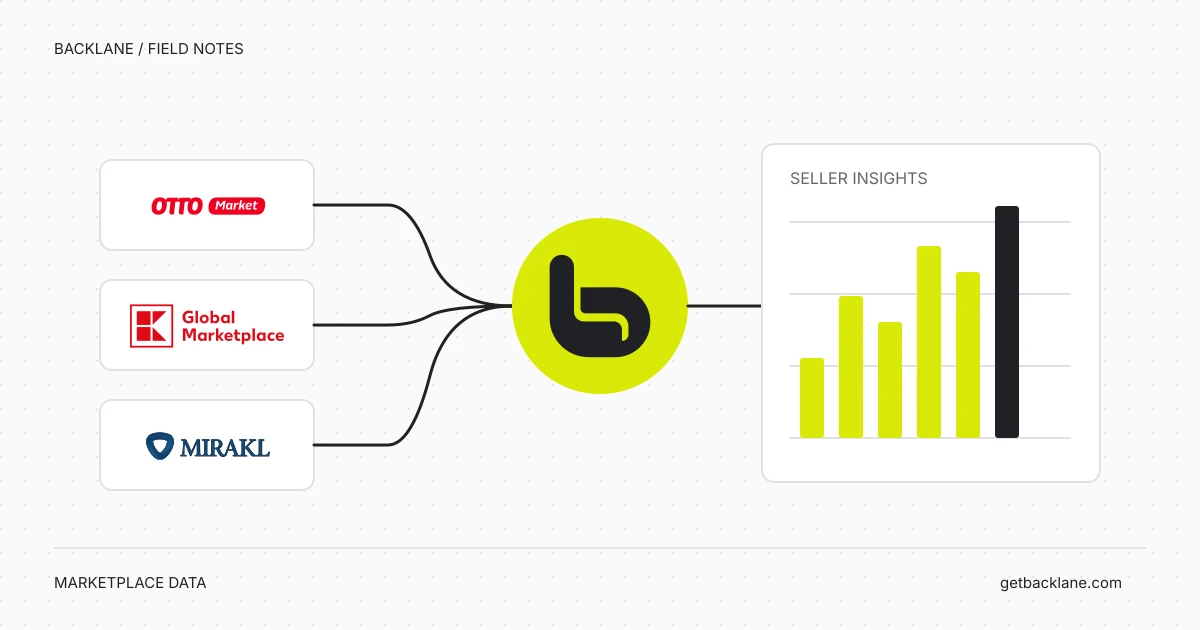
Backlane provides that connection as an MCP server. MCP stands for Model Context Protocol: an open standard that allows AI applications to access external data and tools. The official MCP introduction explains the roles of the AI application, server and tools.
In everyday seller operations, the process looks like this:
- Connect your seller accounts to Backlane and Backlane to your AI tool.
- Ask a specific question, such as which orders are open on a marketplace.
- The AI selects suitable tools, retrieves data from the authorised interfaces and analyses the responses.
- Review the result and decide what to do next.
Backlane supports OTTO Market, Kaufland and Mirakl-based marketplaces such as home24 or Decathlon. The data you can actually retrieve depends on the API, your account and its permissions. Your connected seller accounts are the starting point. Access to their data does not provide comprehensive market intelligence covering every seller and product.
Which seller questions can you answer?
The most useful questions can be traced back to specific data. These examples provide a starting point:
| Your question | Data required | What to check |
|---|---|---|
| Which products sell significantly better on one marketplace? | Order items from the connected accounts and reliable product matching | The same date range, unit definition and cancellation rule |
| Which OTTO products are not online yet? | Marketplace status and reported errors for each SKU | A successful upload does not confirm a visible listing |
| How does my Kaufland offer compare with other offers? | Buybox rank, product price, shipping costs and delivery time | The same storefront and item condition; the list may be limited |
| Which OTTO campaigns fall below my target ROAS? | Advertising spend and attributed revenue from OTTO Ads | Report advertising revenue separately from total revenue |
| Which Mirakl product imports contain errors? | Available import reports from the connected marketplace | Distinguish reported errors from the mere absence of an offer |
A question such as “How can I optimise my revenue?” is too broad for a first request. Start with something you can verify: “Which ten products have the largest difference in ordered units between OTTO and Kaufland.de?” You can then investigate specific differences in their offer data.
How to prepare your first data request
You need a seller account with the necessary API permissions, access to Backlane and an AI tool whose plan and settings support custom MCP servers. The current steps for Claude, ChatGPT, Cursor and VS Code are in the Backlane documentation.
To get started, you can disable write access across your Backlane organisation. This lets you inspect data before authorising changes later. Including “read only” in a prompt helps define the task; access permissions provide the technical restriction.
Start with a small connection test: ask for the available connections and retrieve the status of a known SKU. Compare the result with your seller portal. If they agree, extend the analysis to more products or marketplaces.
Practical example: Compare the same products on two marketplaces
Suppose you sell home accessories on OTTO and Kaufland.de. You want to find products that receive significantly fewer orders on one channel. First establish a fair comparison, then inspect the offers that stand out.
1. Define the date range and metric
For the first comparison, use ordered units excluding cancelled items. This is easier to define than “revenue”, where tax, shipping, refunds and fees may be treated differently. Unit counts still do not represent net sales after returns; state that limitation explicitly.
Your prompt could look like this:
Compare my ordered units on OTTO and Kaufland.de for the last
30 complete calendar days in Europe/Berlin.
State the exact start and end dates first.

Use the order date, not the modification date.
Exclude cancelled items and explain how you handle partial
cancellations and returns. Read all required result pages.

Match the same products using EANs or a confirmed SKU mapping.
Ask for clarification if any mappings are uncertain.
Show the ten largest absolute differences in unit counts.

For each product, show its identifier, units per marketplace,
the difference and any data gaps. Missing data is not zero.
Use read-only queries throughout.
Why be this precise? A SKU can identify different products in two systems. An order list may contain only the first page of results. An API may filter orders by their last modification time even though you want to compare them by order date. These differences change the result, even when the finished table looks plausible.
2. Read the differences without inventing causes
An illustrative response with entirely fictional figures could look like this. The products are assumed to be matched correctly; “units” means the metric defined above.
| Product | OTTO | Kaufland.de | Difference: OTTO minus Kaufland |
|---|---|---|---|
| Table lamp L-101 | 84 units | 12 units | +72 units |
| Shelf R-204 | 18 units | 51 units | −33 units |
| Stool H-310 | 27 units | Data missing | Cannot be calculated |
The lamp would be a sensible first item to investigate. However, the table proves neither a listing error nor an excessive price. Differences in demand, visibility and offer terms are initially just possible explanations.
For the stool, any conclusion about weak Kaufland sales would be premature. First establish whether data or product matching is missing. Only a complete query with no matching order items justifies a zero for the requested period.
3. Inspect the offer that stands out
Next, ask about the lamp’s current offer on both channels: Is it active or online? What stock is reported? Which prices, shipping costs and delivery times are available? Are there specific status messages or errors?
For OTTO, separating upload results from marketplace status is particularly useful. The OTTO product documentation explains that further checks after a successful upload can prevent a variant from going online. A successfully transferred record is therefore not sufficient evidence.
The result should be a short worklist: observation, evidence, next check. For example: “A current listing error is reported → inspect the message → correct the affected product data.” A status observed today does not automatically explain the previous 30 days. That would require historical status or inventory data.
Three prompts for your next analysis
The following templates explore individual questions from the comparison. Replace the placeholders and specify the connection if you have several accounts.
Find more templates for specific seller questions in the marketplace analysis prompt library. You can filter by marketplace and task.
OTTO: Which listings need attention?
Check the current marketplace status of my OTTO products.
Show SKUs whose status is not ONLINE, with their status,
reported errors and any other available information.

Read all result pages. Distinguish ongoing processing,
rejection, restrictions and inactivity using the source data.
Separate reported causes from your suggested actions.
Do not change product data.
This creates a list to review. Whether you actually want to offer an inactive variant again remains a business decision; a different status alone is not an instruction to act.
The guide OTTO product not online: Check listing status and find errors explains the full process, from an affected SKU to checking the result of a correction.
Kaufland: How does my offer compare with others?
Check the available Buybox offers for [EAN or product ID]
on Kaufland.de, using the same item condition.

Show rank, product price, shipping costs, total price and
delivery time. Identify my offer where this is possible.
State the retrieval time, number of offers returned and
the result list's limit.

If my offer is missing, do not invent a rank.
Suggest checks without changing prices.
The connected Buybox endpoint returns a maximum of ten offers. Your own offer’s absence from that list therefore does not establish a particular rank. Also compare prices including shipping; Kaufland’s official explanation of seller reports includes shipping costs in price comparisons.
OTTO Ads: Where should you take a closer look?
Compare my OTTO Ads campaigns over the last 30 complete days
with the preceding 30 days. State both periods.

Show advertising spend, attributed revenue and ROAS for each
campaign in both periods. Convert monetary amounts consistently
to euros. Prioritise campaigns below my target ROAS of [target]
by advertising spend in the current period.

Identify missing data and when the figures were calculated.
Do not calculate your own ROAS when advertising spend is zero.
Do not change budgets, bids or campaigns.
OTTO Ads provides metrics attributed to advertising. Keep these separate from the total revenue of your orders. The OTTO reporting documentation explains attribution and the available reporting period. A ROAS below your target flags an item to review; a budget decision also requires information such as margins, returns and campaign objectives.
How can you recognise a reliable answer?
A useful analysis can be checked. Review these five points before making a decision:
- Period and source: Does it identify the accounts, marketplaces, date boundaries and retrieval time?
- Completeness: Were all required result pages read? Are inaccessible connections and missing fields visible?
- Comparability: Are product matching, unit definitions, cancellation rules and currency consistent?
- Evidence: Can you verify a row that stands out in the seller portal using its SKU or product identifier?
- Conclusion: Does the answer distinguish measured differences, possible causes and recommended next steps?
If something is missing, ask specifically for it. For large catalogues, one fully checked category is often a better starting point than an apparently complete table of every product.
Common questions about accessing marketplaces with AI
Do I need programming skills?
You can use natural language for the queries described here. The seller connection and AI tool must be set up first. The setup guide walks through that step; depending on the marketplace, API permissions may require help from an account administrator.
Is the data always real time?
That depends on the system being queried. A current API request may return delayed inventory information or the most recently calculated report. Ask for the retrieval time and any available update or calculation timestamp. “Just retrieved” does not automatically mean “just updated”.
Can the AI also make changes?
Write actions may be available depending on the interface and permissions. The examples in this guide are for reading and checking data. You can disable write access centrally in Backlane and deliberately enable it later.